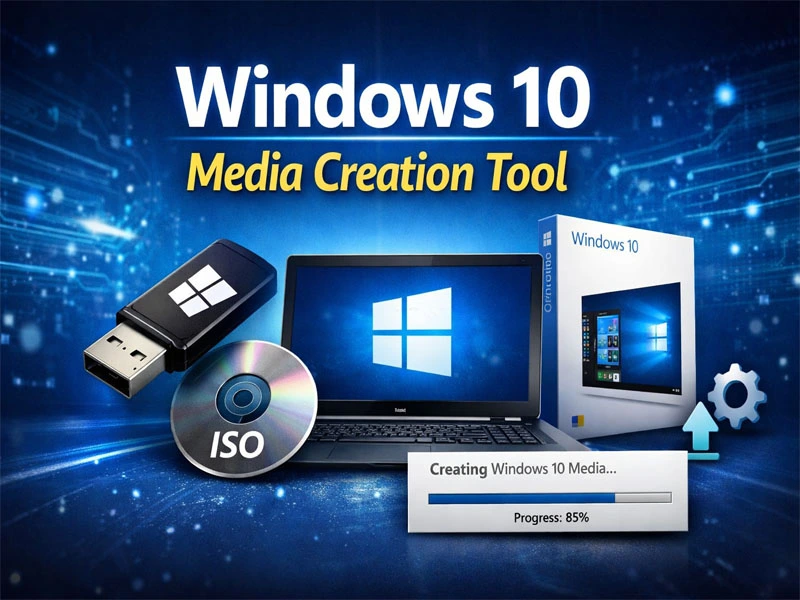
If your computer crashes or you want to install a fresh, clean copy of Windows the official way, then Windows 10 Media Creation Tool is exactly what you need.
This tool is provided directly by Microsoft and allows you to download an original copy of Windows 10 and create a bootable USB drive easily.
What Is the Media Creation Tool?
Simply put, it is an official tool from Microsoft that allows you to:
- Download the latest version of Windows 10
- Create a bootable USB flash drive
- Download an ISO file to burn later
- Upgrade your current PC directly
Instead of downloading unsafe or modified versions from unknown websites, you get a 100% genuine copy straight from the source.
Key Features
1. Official and Secure
No viruses, no modified files, no risks. Everything comes directly from Microsoft.
2. Very Easy to Use
The tool is lightweight and simple. Just:
Next → Next → Finish.
3. Always the Latest Version
You automatically download the most recent Windows 10 update.
4. Choose Language and Architecture
You can select:
- Language (English, Arabic, etc.)
- 32-bit or 64-bit
- Or both
How to Use It (Step by Step)
Step 1 – Download the Tool
Download the Media Creation Tool from Microsoft’s official website.
Step 2 – Run the Tool
- Right-click the file
- Select “Run as Administrator”
- Accept the license terms
Step 3 – Choose What You Want to Do
You’ll see two options:
- Upgrade this PC now (to update your current computer)
- Create installation media (USB flash drive, DVD, or ISO file) (to create a bootable USB)
Choose the second option if you want to create a USB drive.
Step 4 – Select Language and Edition
Choose:
- Your preferred language
- Windows edition (Home or Pro)
- 64-bit (recommended for most users)
Click Next.
Step 5 – Choose Media Type
Select:
USB flash drive
Insert a USB drive (at least 8GB), choose it from the list, and click Next.
Step 6 – Wait for the Process to Finish
The tool will:
- Download Windows 10
- Prepare the files
- Make the USB bootable
This may take 20 minutes to an hour depending on your internet speed.


After It’s Done
- Your USB drive is now ready
- Insert it into the target PC
- Restart the computer
- Enter the Boot Menu (usually F12, F9, or ESC depending on the device)
- Select the USB drive
Windows installation will begin.
Important Note
The tool itself is free.
However, Windows activation requires a genuine product key if your device was not previously activated.
Conclusion
Windows 10 Media Creation Tool is the easiest and safest way to install Windows 10 officially without complications.
If you prefer clean and secure installations, this tool should always be part of your toolkit